Nejat Ozalp, Senior Product Designer
← All work
iChoosr · Partner portal

One portal for installers, from lead to invoice

Designing the portal where solar panel, heat pump and air conditioning installers pick up the customers iChoosr sends them, and take each one from first visit to an approved delivery.

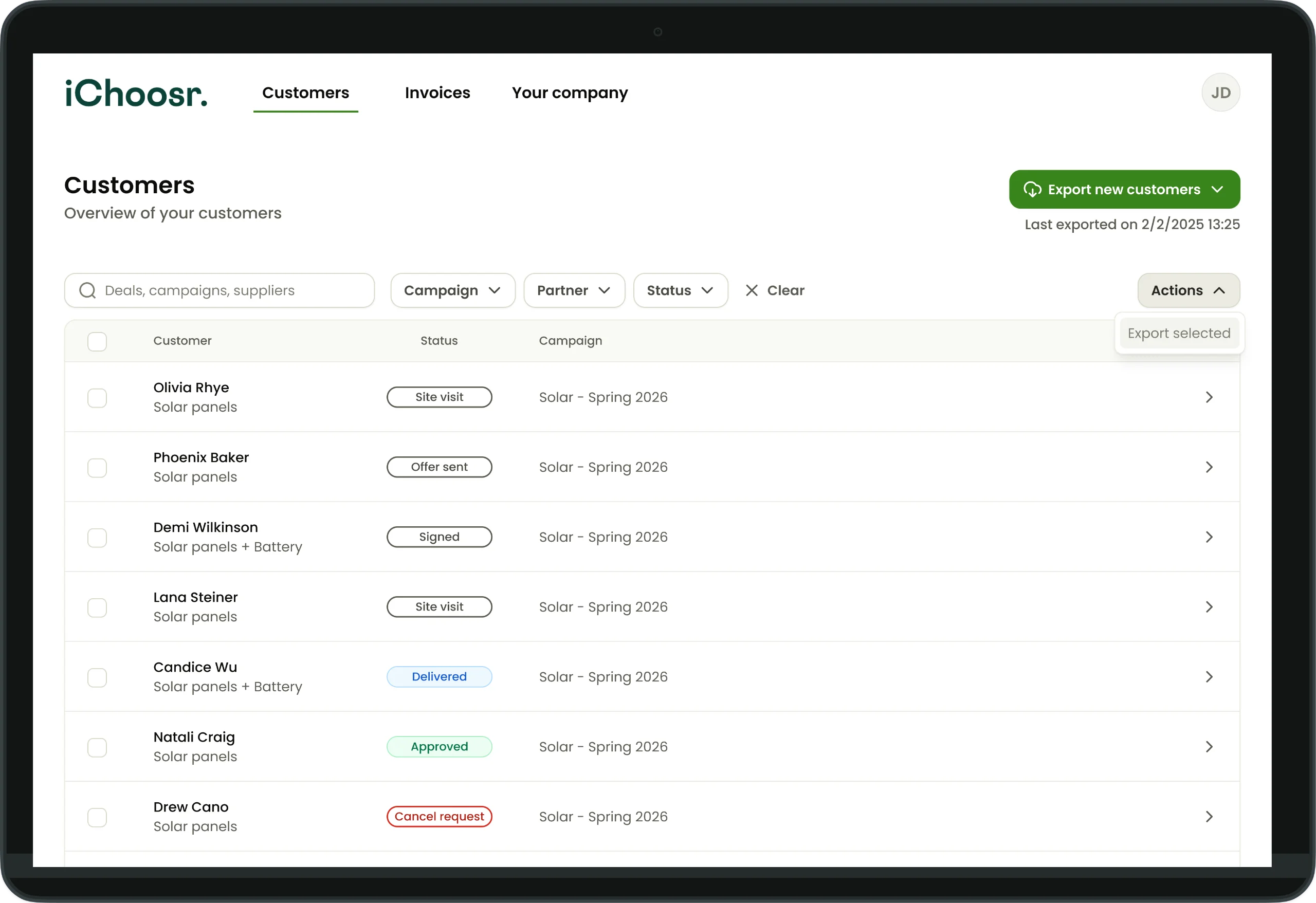
iChoosr partner portal on a laptop: the customer overview with status labels and the Export new customers button

Problem

Installers needed one portal to take iChoosr’s leads all the way to an approved invoice.

  • One journeyEvery step should be fast and leave no room for mistakes.
  • 5 countries, and more to comeOne platform that scales to new markets.
  • Every productSolar panels, heat pumps, batteries and air conditioning.

Solution

One portal that guides installers through every step, from new lead to approved invoice.

  • One flow, local needsThe same core steps everywhere, with requirements grouped into needed by all, by some, or nice to have.
  • Built to scaleReady for new countries and markets: each one plugs into the same flow with its own requirements, without the need to design or develop anything new.

Results

  • Faster tasks15% less time on task and 20% less operational effort, so invoices are settled sooner and revenue flows in faster
  • Fewer entry errorsless wrong data, like incorrect prices, means fewer correction requests, faster invoicing and less work for customer service
  • Happier partnersinstallers find the portal easier to work with, so they need to call support less often

How I approached it

Understand

What slows partners down today?

Interviews with installers

I started with the installers themselves, to understand their needs and the problems and bottlenecks they hit in the old system.

  • Too many details to fill in by hand
  • Workload peaks during campaigns
  • Offers change after the technical assessment
Interviews with business reps

Then I talked to the colleagues who work with installers every day. They know where partners get stuck, which questions keep coming back and where deliveries go wrong.

  • Not every installer works with a CRM
  • It has to scale to every country and product
  • Installers make mistakes when entering data, like wrong prices
  • One product, many names: everyone enters it differently

Mapping the partner’s journey

Together, the interviews gave a clear picture of the journey every installer goes through with a customer, from the first lead to an approved delivery.

  1. 01 Pick up leads See every new customer, their home and what they chose, in one list.
  2. 02 Assess and update After visiting the home, adjust the offer when the job needs more.
  3. 03 Plan the install Confirm the agreement and set an installation date.
  4. 04 Deliver After installing, submit the delivery with its report and invoice.
  5. 05 Get approved iChoosr reviews it and approves, or asks for a correction.

Focus

What does everyone really need, in every country?

Making sense of what we heard

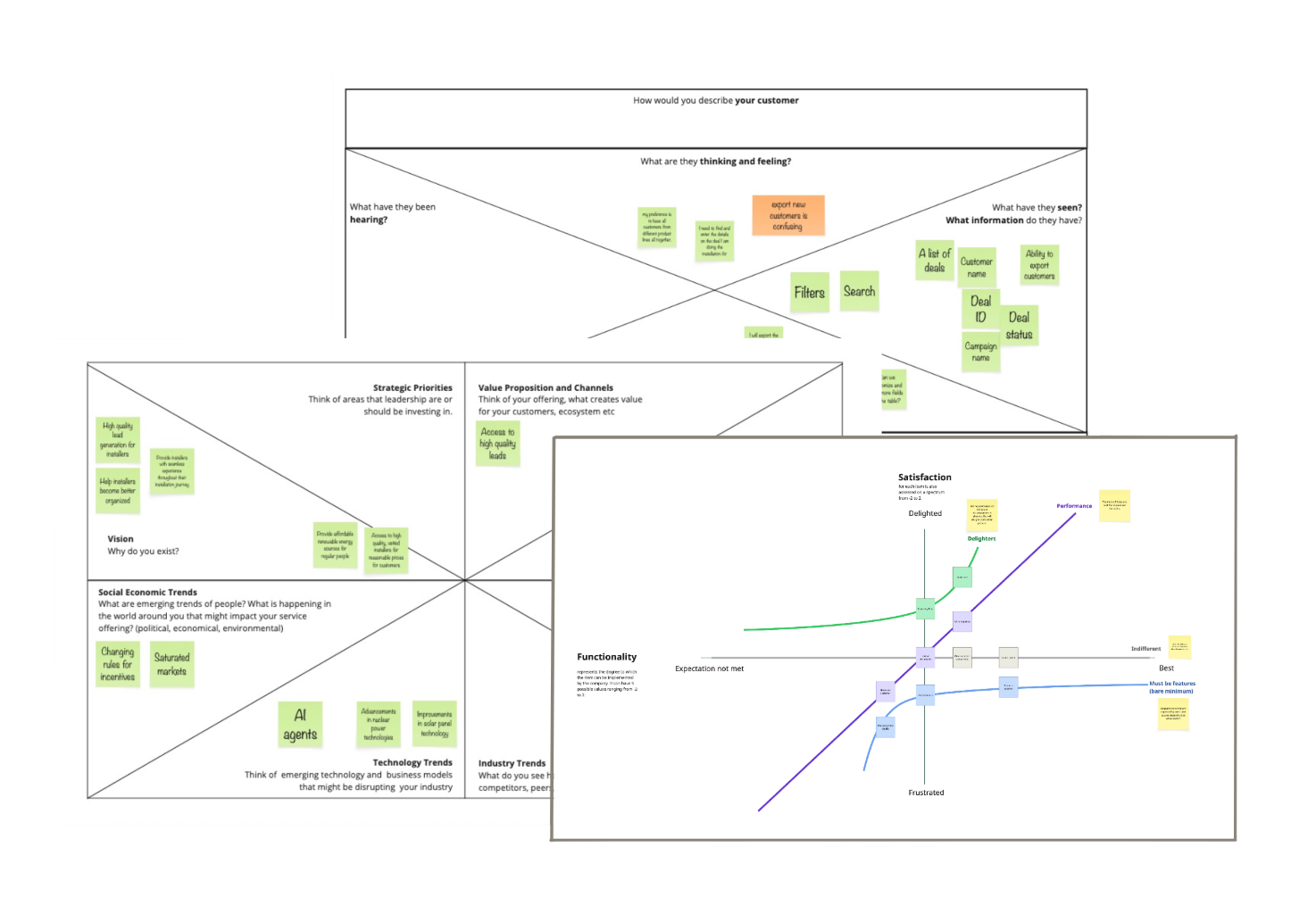
I turned the interviews into an empathy map to capture what installers need and what frustrates them. Then I used a strategy canvas and a Kano model to decide what the portal had to do really well, and what could wait.

Research synthesis boards: an empathy map, a strategy canvas and a Kano model

Workshops with business reps

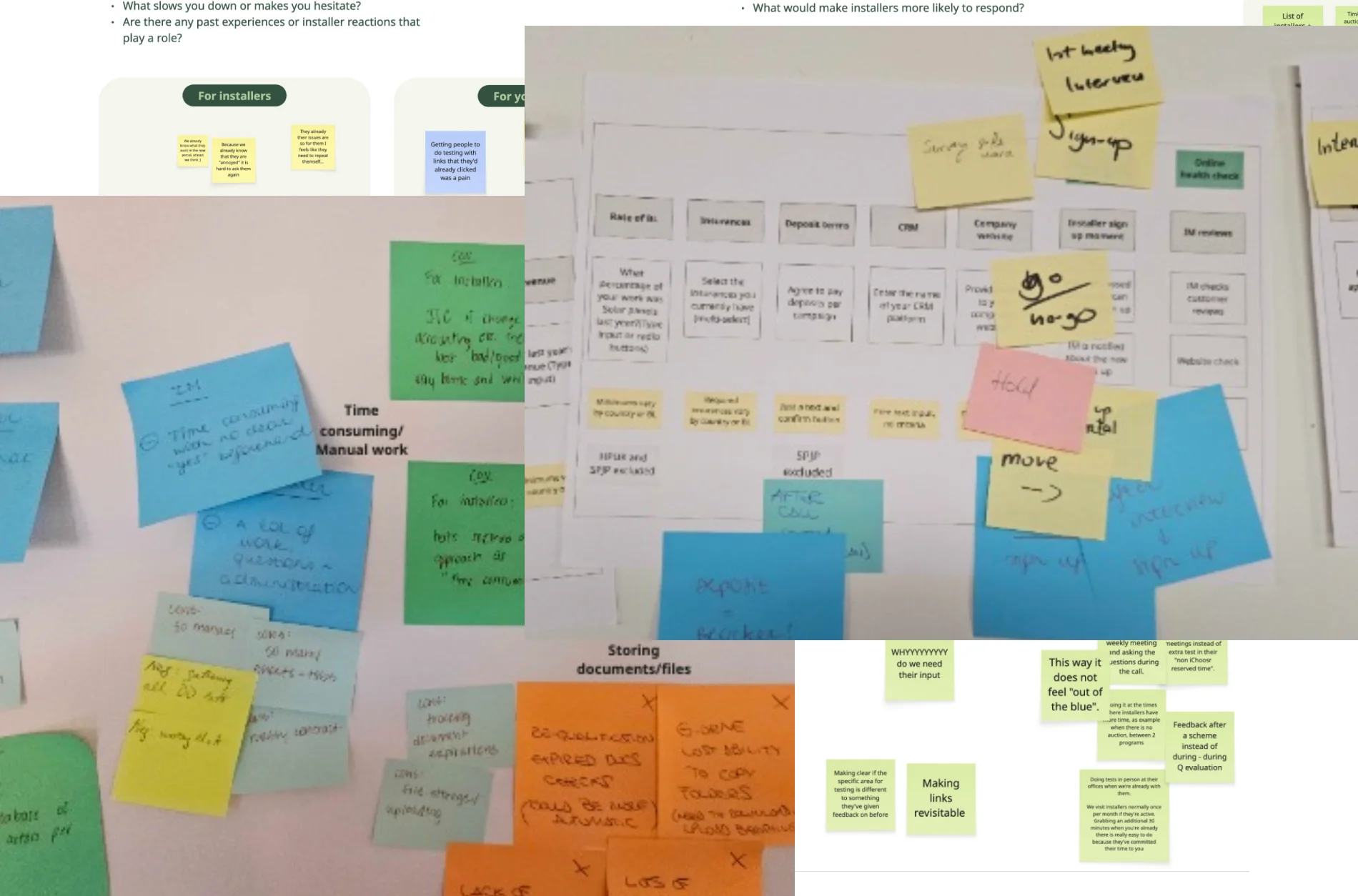
I ran in-person and online workshops with business reps to define which information and documents are needed at each step, and what installers and iChoosr expect from each other. Everything had to work for all 5 countries we operate in.

Workshop boards with business reps: sticky notes on pains, ideas and the information needed at each step
Key moment

Required by all, by some, or nice to have

Requirements differed from country to country, so we sorted every piece of information and every document into three groups. This kept the core flow the same everywhere, while each country still got what it needs.

  • Required by all countries
  • Required by some countries
  • Nice to have

Explore

What could it look like?

A wireframe prototype, built in the workshop

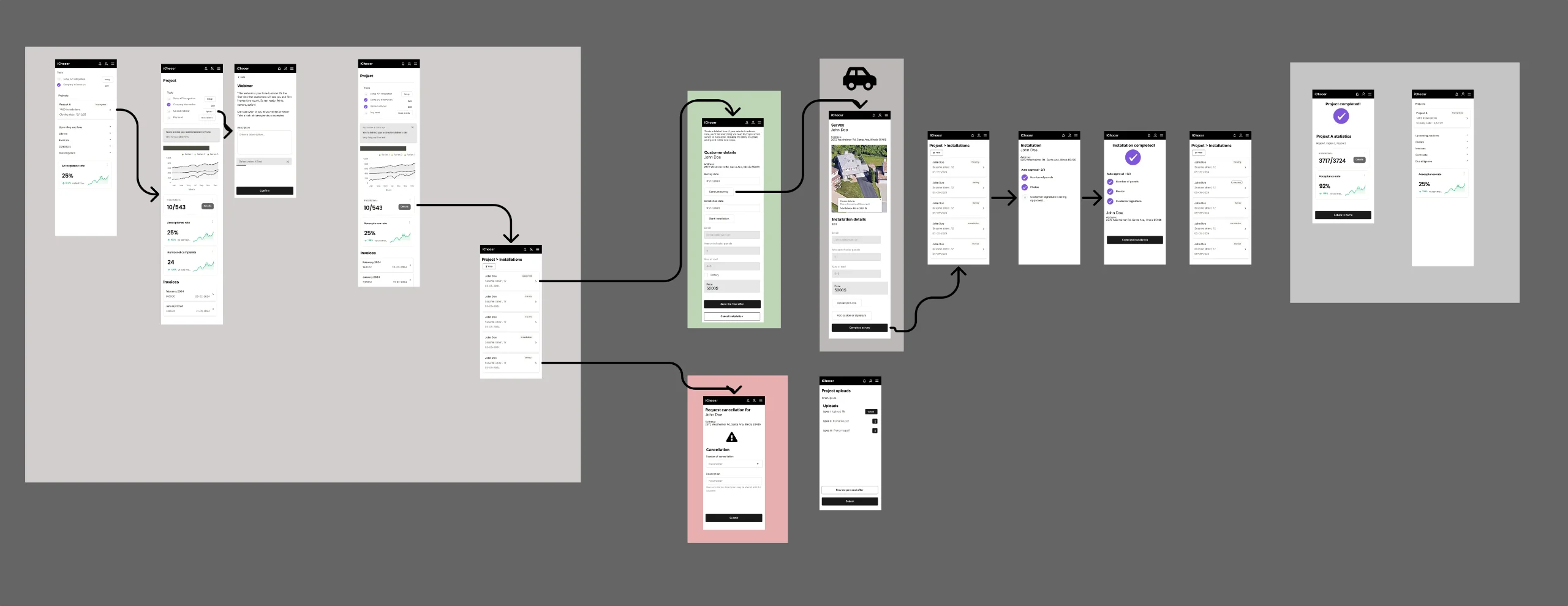
We sketched the first wireframe prototype together during the workshops, so business reps could react to real screens instead of descriptions. We went mobile first, which kept every screen lean and quick to use.

Wireframe prototype of the installer journey, from the project overview through survey, installation and completion, with cancellation as a side path

Flows for every step

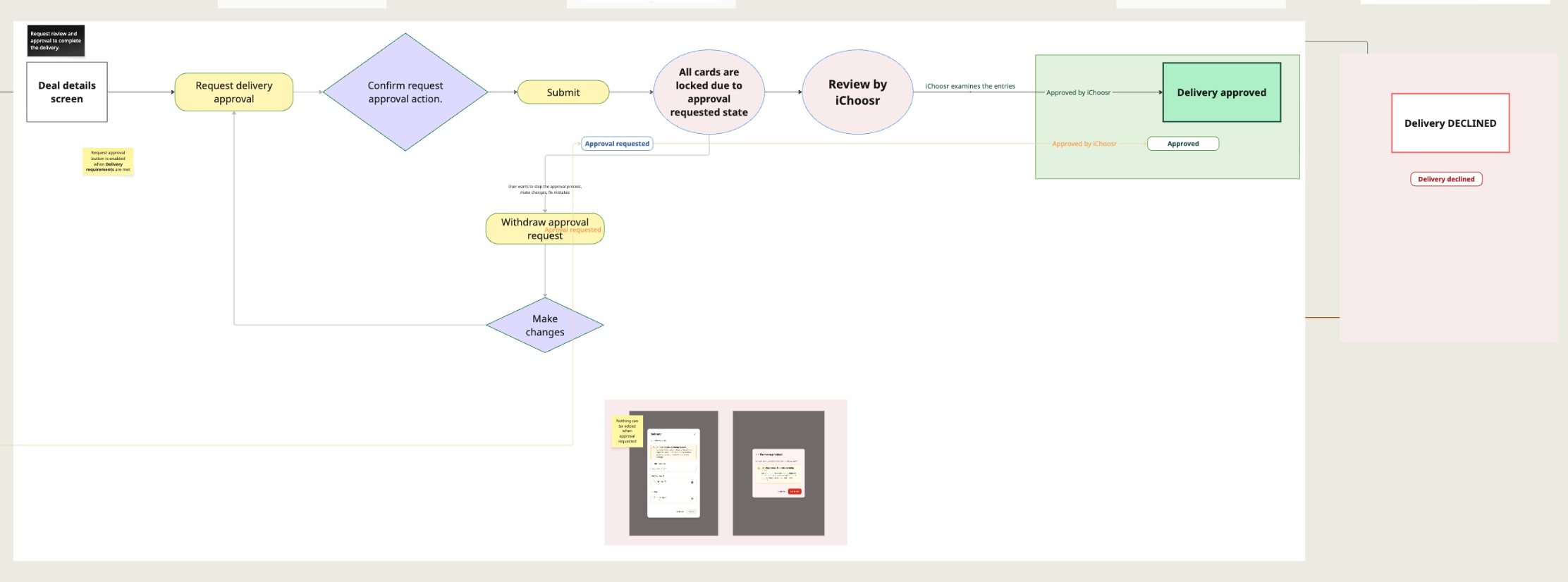
I mapped the flow of each step, like requesting delivery approval: what the installer does, what iChoosr reviews, and how changes, withdrawn requests and declined deliveries are handled.

User flow for requesting delivery approval, from the deal details screen to approved or declined

Refining and user testing 

I refined the prototype and tested it with installers from each country, the people who will use the portal every day. The tests allowed us to validate our concept and confirm that we on the right path. We used the learnings to re-iterate our assumptions and flows. Each session used realistic scenarios for every section, from assessment to approval, plus one end-to-end task, and we tracked task success, time, errors and hesitation.

  • Can installers go from assessment to approval without help?
  • Are the labels clear, like capacity vs. pieces, or offer price vs. invoice amount?
  • Does the flow match how jobs really happen in the field?
  • Do they spot required fields and recover from mistakes?

Design

How does it come together?

A service blueprint, down to every action

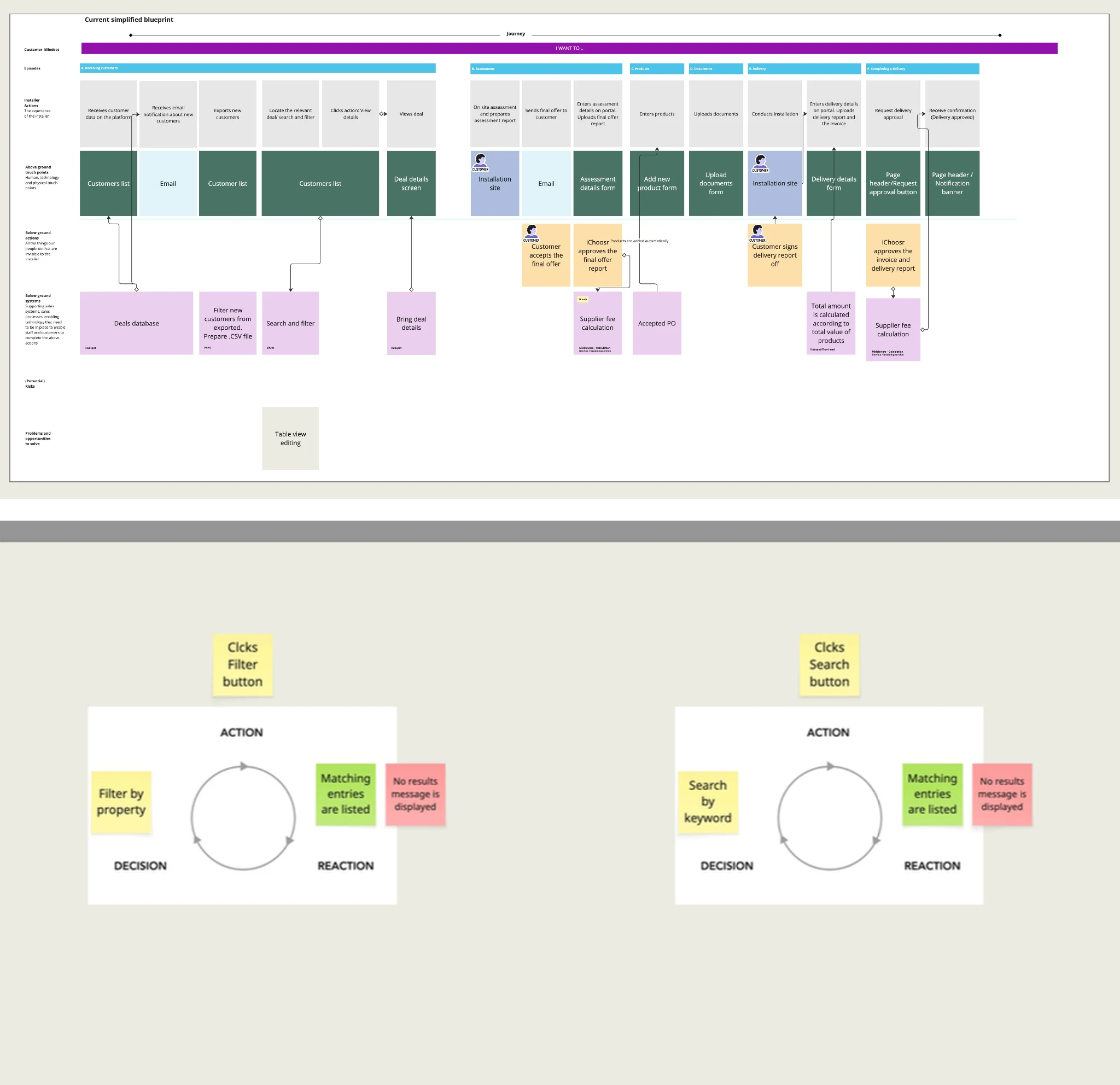
Once we knew how the portal would connect with HubSpot and the other systems, I mapped the service as a blueprint: what installers do at each step, the screens they touch, and the people and systems working behind the scenes. Then I zoomed in on each interaction, like filtering or searching the customer list, and mapped the action, the decision behind it and how the portal reacts, including what installers see when nothing matches.

Service blueprint of the installer journey, with action, decision and reaction loops

New components for the design system

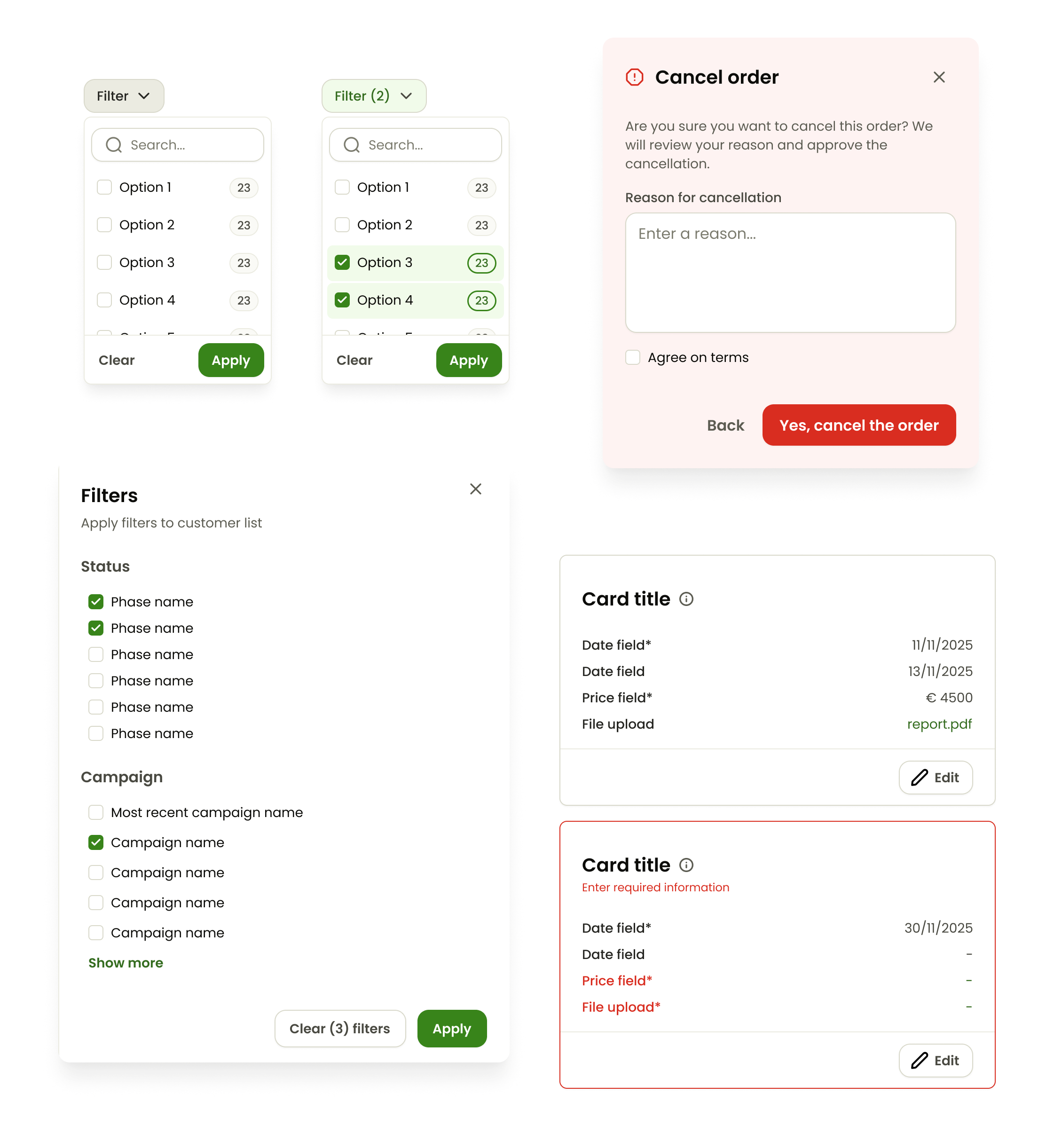
The portal needed components our design system didn’t have yet, so I designed and added them. I gave special attention to the data table, search and filters, since installers rely on them constantly to manage long customer lists. Each one covers its key states, like default and error, so it behaves the same everywhere it’s used.

New portal components on the design system: filter dropdowns, a filters panel, a cancel order dialog, and summary cards in default and error states

Screen designs

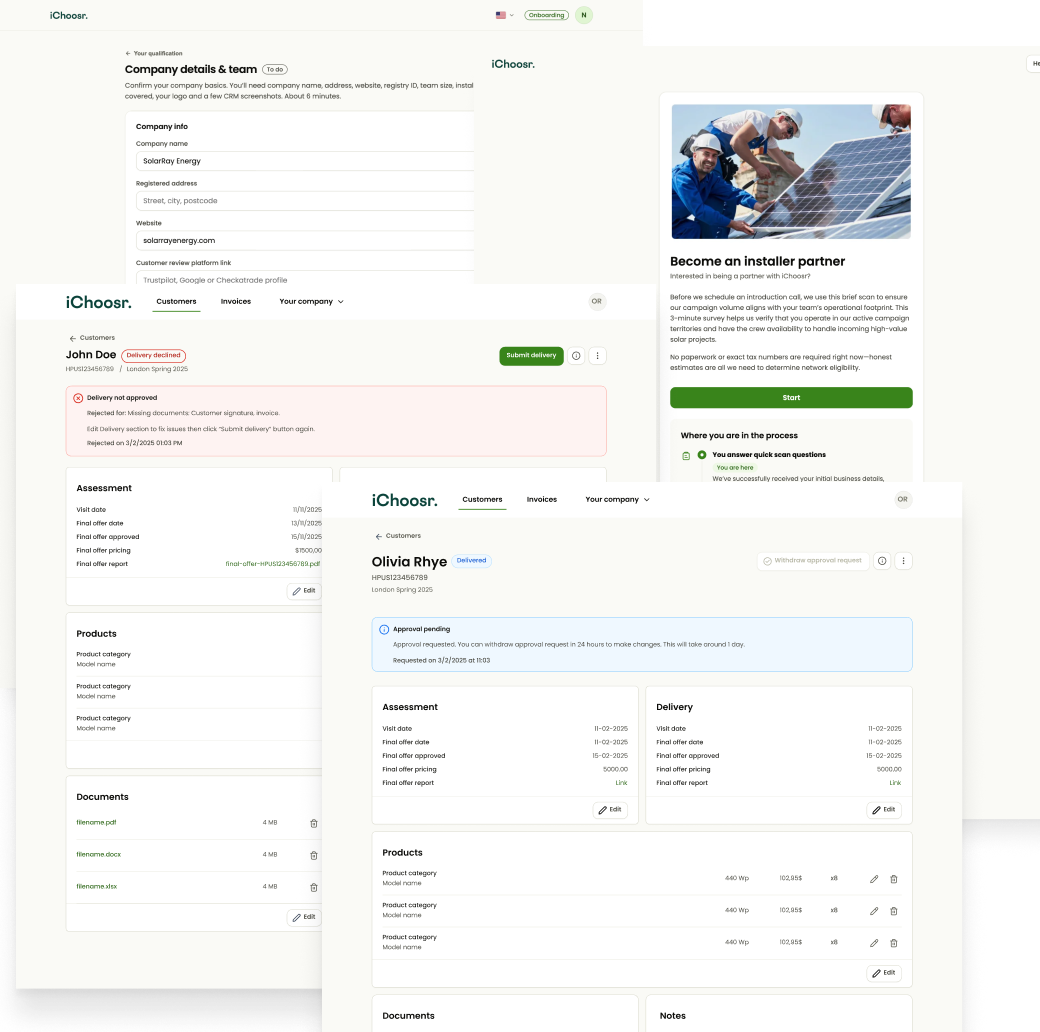
With the components in place, I designed the screens for every step of the journey, from picking up a lead to submitting a delivery. I aligned the designs with the product manager along the way.

Final portal screens: partner onboarding, a declined delivery with the reasons to fix, and a delivered customer awaiting approval
Key moment

Export only today’s new customers

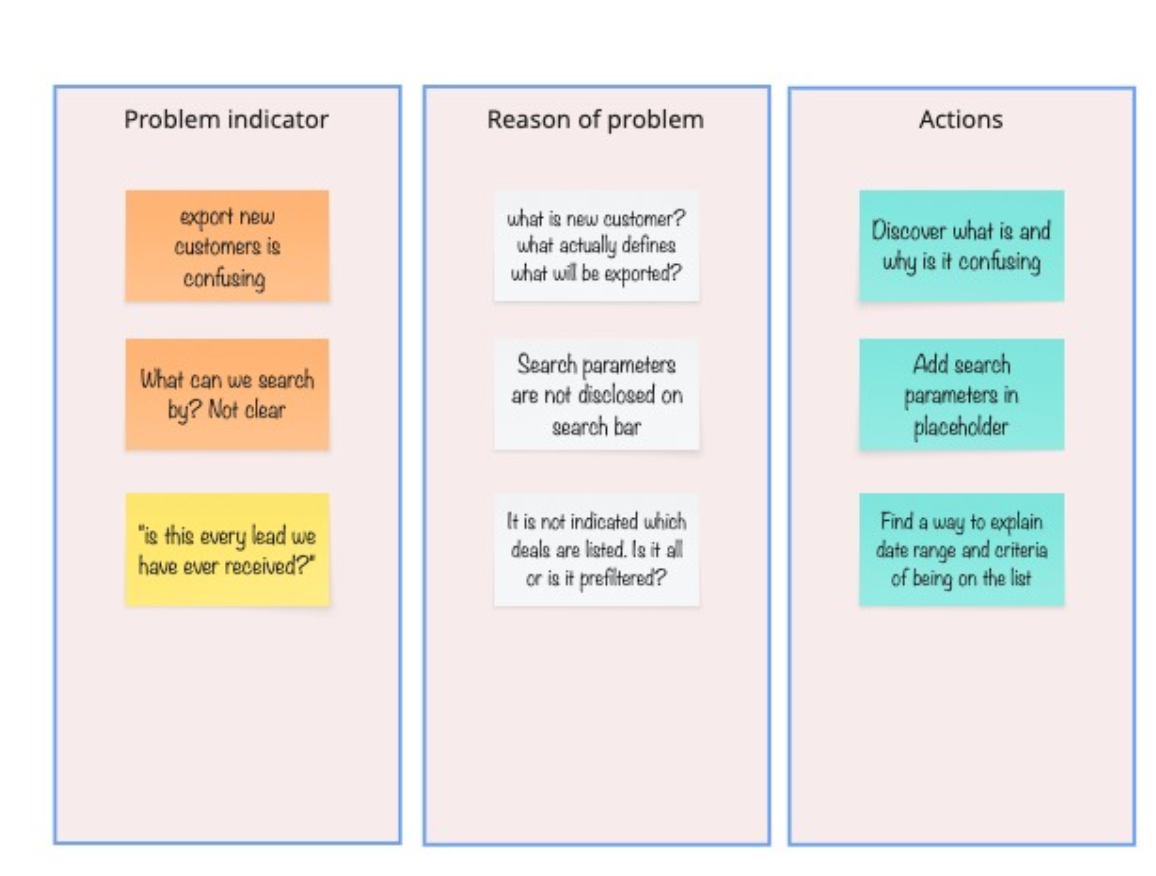
Installers told us exporting new customers was confusing: what counts as new, and what will be exported? Now one button exports only the new customers of the day, and the page shows when they last exported.

Board linking problem indicators, their reasons and actions, starting with: export new customers is confusing

Validate & ship

Does it work, and is it ready to ship?

A second round of user testing

Before handing over, I ran another user testing campaign with installers from each country to verify the final designs.

  • “Much more intuitive and user-friendly”
  • “Will there be an API integration?”
  • “Easy to share documents and information, and to get approval”
  • “I’d like to see the customer’s choices and home details on the page”

Handoff and launch

With the designs verified, I handed them over to the developers. We launched with a handful of pilot installers, then gradually rolled the portal out to all partners in every country, fixing what we learned along the way.

Continuous discovery

What did real use teach us?

Learning moment

A disabled button that hid the way forward

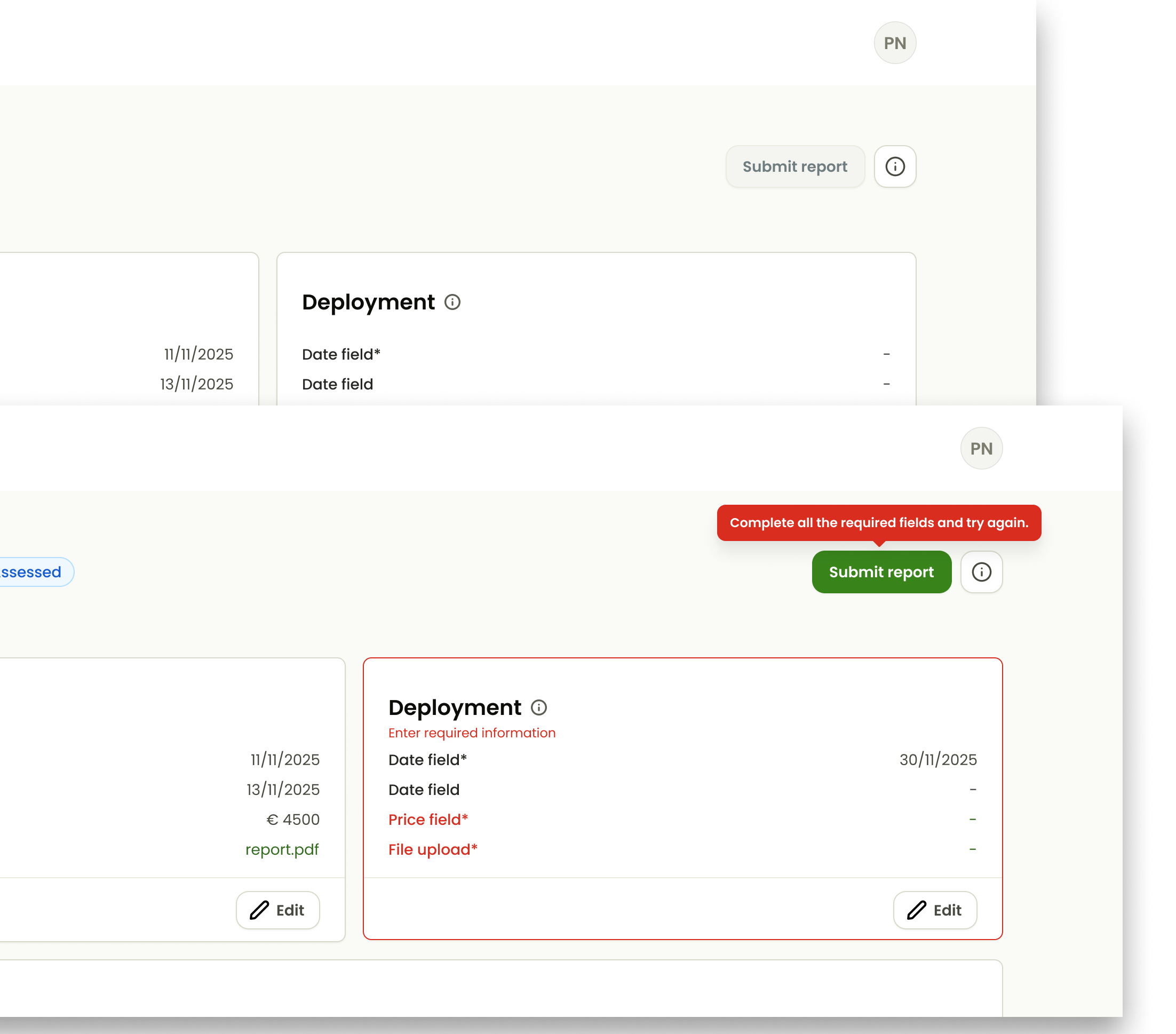
Once the portal was live and installers were using it every day, we realised something the tests hadn’t shown. We had kept the submit button disabled until every required field was filled, and some installers never noticed it become active. They left without submitting, so their deliveries never reached us. We changed it: the button is now always enabled, and pressing it shows clear errors on any required field that is still missing. It’s a reminder that discovery doesn’t stop at launch. We keep learning from how the portal is really used, and keep improving it.

Before and after: a disabled Submit report button, and the new always-enabled button that shows an error and highlights the missing required fields
Next case study Halving the effort to stop phishing attacks